
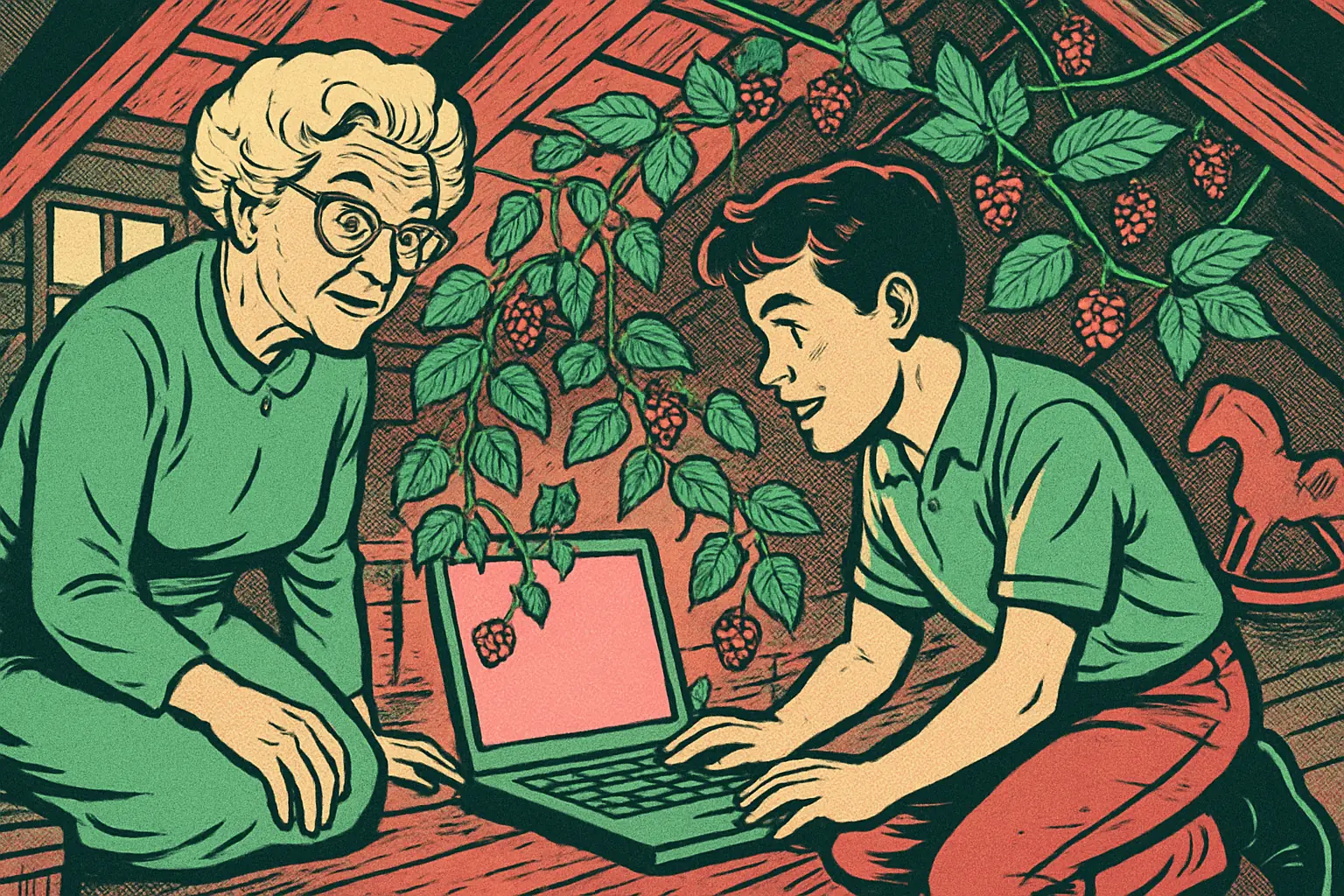
Raspberry Pi Desktop for PC and Mac: Revive an Old Laptop
Raspberry Pi Desktop returns for PCs and Intel Macs on 64-bit Debian Trixie, runs live from USB, and installs free on machines up to about 15 years old.

Raspberry Pi released a new Raspberry Pi Desktop for PC and Mac on October 6, 2026, the first refresh of the x86 edition since the Debian Bullseye era. Raspberry Pi Desktop brings the same interface Pi owners use every day to ordinary computers, rebuilt on Debian 13 "Trixie" and now 64-bit only. If you have an aging laptop in a drawer, this is a free way to turn it into a clean, familiar Linux machine.
- Base: Debian Trixie, amd64 only, using Debian's Linux 6.12 LTS kernel according to 9to5Linux.
- Hardware: most PCs from roughly the last 15 years and Intel-based Macs; Apple Silicon Macs are not supported yet.
- Install: a live ISO you flash to USB, with an optional persistence mode and the Calamares installer for a permanent install.
- Extras: the new Control Centre, the new dock and the Raspberry Pi Connect remote-access client.
What Is Raspberry Pi Desktop?
Raspberry Pi Desktop is the Raspberry Pi OS desktop environment packaged for x86 computers rather than for the ARM single-board computers the company is known for. The project started in 2016, when the team built a bootable version that shipped on a DVD with The MagPi magazine. Releases followed for Debian Buster and Bullseye, then paused. In the announcement, Raspberry Pi's Simon Long explains that the team simply got busy and left the old Bullseye build online. This release brings the PC edition back in line with the current Pi experience, including the Wayland-based panel and the redesigned settings.
Will Raspberry Pi Desktop Run on My Computer?
Because Debian has dropped 32-bit PC support, this edition is amd64 only. Raspberry Pi says most computers made in the last 15 years can run it, along with Intel Macs. Apple Silicon Macs are out for now because Debian support for them is still experimental. The release is not an upgrade path from the older 32-bit builds, so plan on a fresh install.
How Do You Install Raspberry Pi Desktop?
Installation follows the familiar live-USB pattern:
- Download the ISO from the Raspberry Pi operating systems page.
- Flash it to a USB stick.
- Boot your PC or Intel Mac from the stick.
- Pick "run with persistence" to keep your files and settings on the USB drive between sessions.
- When you are ready, launch the Calamares installer from the desktop shortcut or the System Tools menu to install to the internal drive.
You can also reset persistence to return to the clean original image, which makes it a handy test environment.
Why Raspberry Pi Connect on a PC Is Useful
The bundled Raspberry Pi Connect client lets you reach the machine's screen or terminal remotely through the same dashboard you use for your Pis. On a PC you give the device a name during setup instead of relying on a Pi hardware ID. For homelab owners, that means an old laptop can join the fleet as a lightweight server or kiosk. It pairs nicely with the Linux 6.18 Raspberry Pi OS update, which delivered the desktop refresh this build inherits. Browse more in our mini computer coverage.
Sources: Raspberry Pi — October 6, 2026; 9to5Linux — October 6, 2026; XDA Developers — October 6, 2026.
More Mini Computers Stories
ESP32 SDR Firmware: Turn a Dev Board Into a Radio Scanner
A hidden ESP32 mode lets free ESP-SDR firmware capture raw radio from 2.2 to 2.7 GHz, and 4.8 to 6 GHz on the ESP32-C5, at up to 80 MSa/s. Here is how.
Framework Desktop 192GB: Price, Specs and Ship Date
The Framework Desktop now offers 192GB of memory with the Ryzen AI Max+ PRO 495, from $6,799 DIY, shipping in November. Here are the specs to know.

How Much Memory Does a Local AI Mini PC Really Need?
Memory size, memory bandwidth and TOPS all matter differently for local LLMs. Use this guide to pick 32GB, 64GB, 128GB or 192GB for your models and budget.